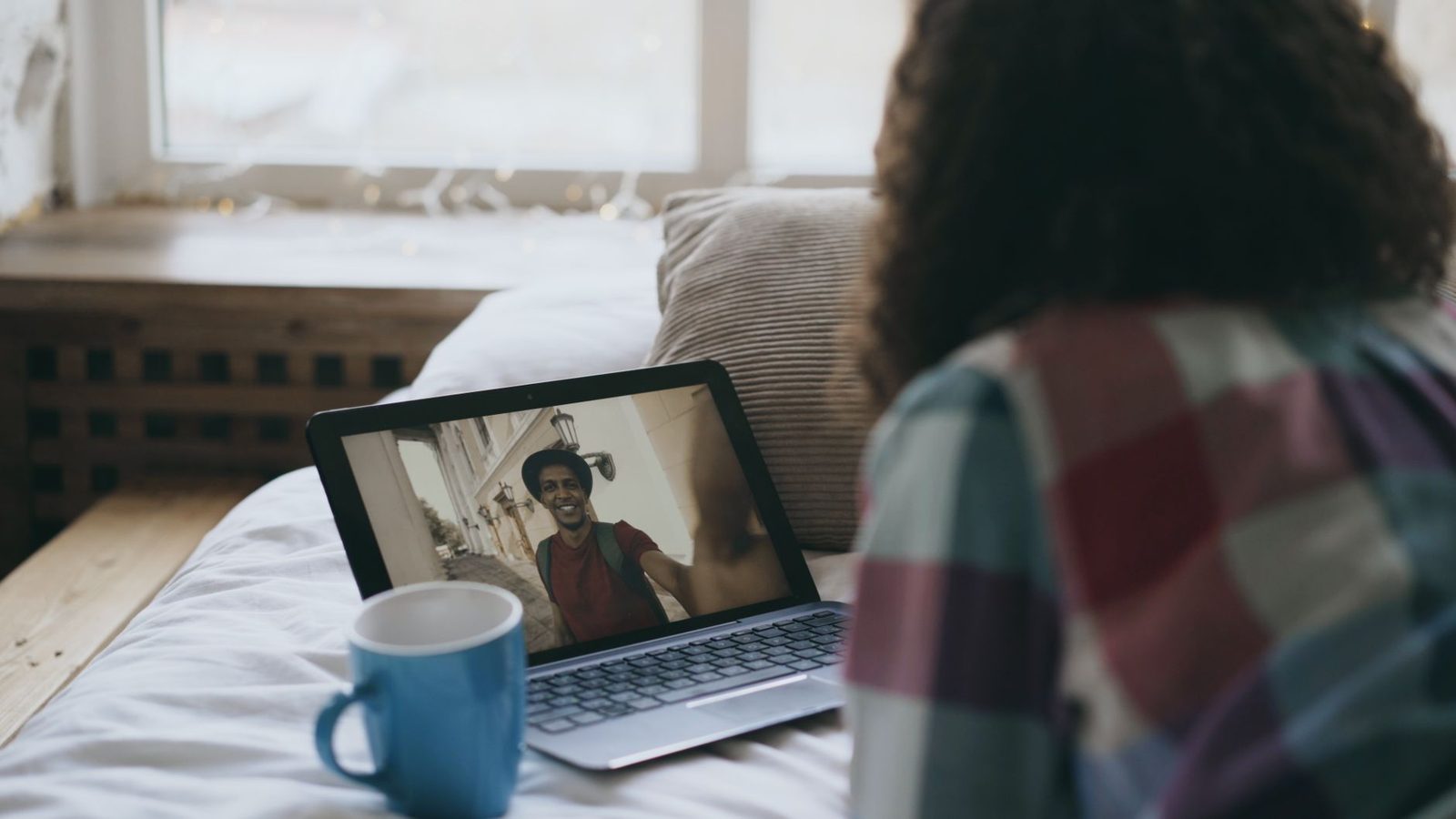
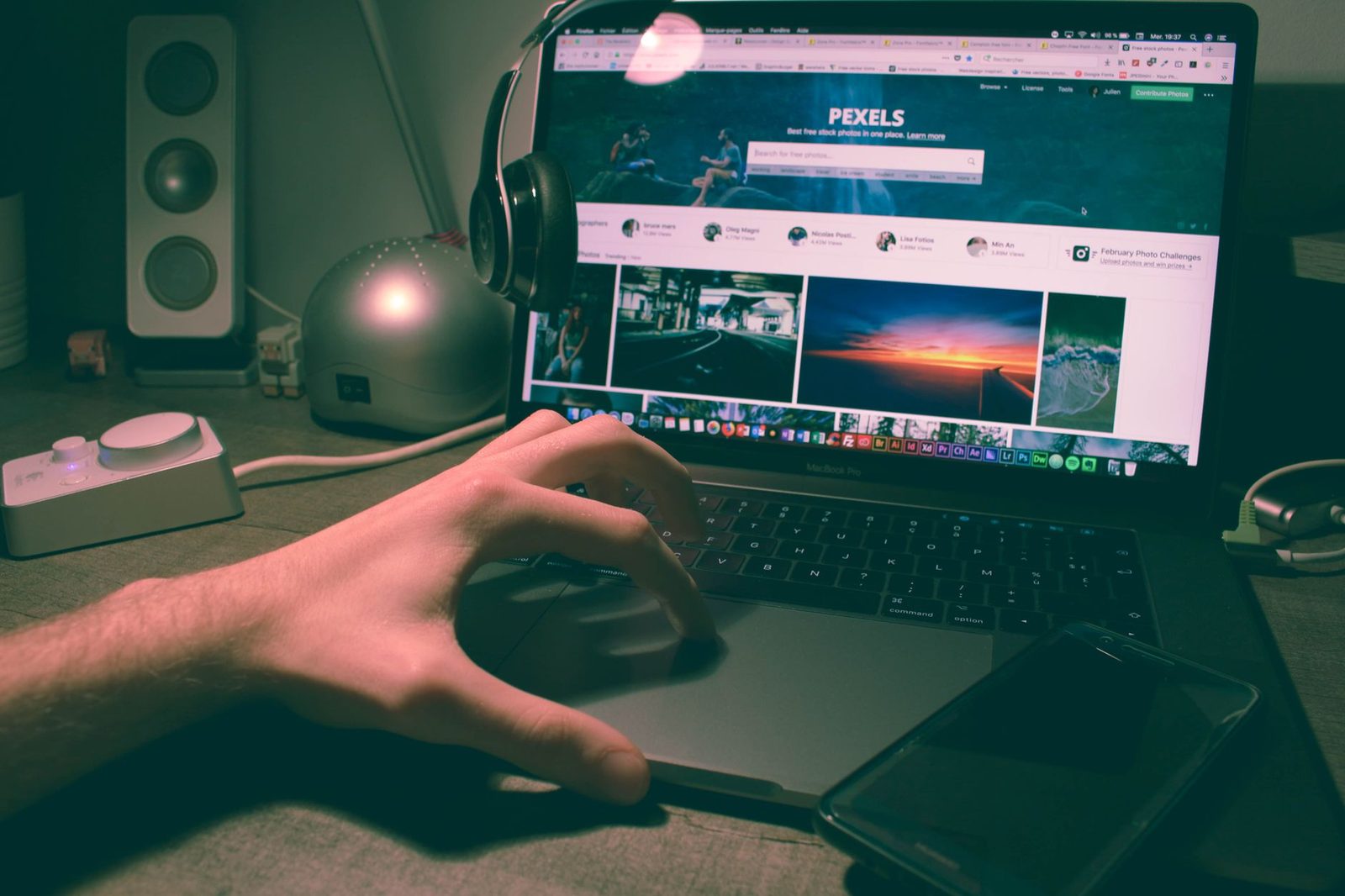
Eleven at night. You've just left a chatroulette after forty minutes of disjointed conversations. You close the tab, half-lower the screen, and go get a glass of water. When you come back, you notice a small green light next to the lens. It's still on. And yet you haven't launched anything. You click around, you reopen the browser, and it finally goes out. Nothing dramatic happened — but for four minutes, you had no idea whether your camera was filming your living room.
We've already talked about staying anonymous and protecting your privacy, about mastering your webcam before you even connect and about what your background says about you in three seconds. This article tackles a more plainly material subject, and for that very reason one almost never discussed: physical control of the lens. Not encryption, not passwords: the piece of plastic or metal that depends on no line of code whatsoever.
Three parts: how a camera actually switches on (and what the indicator light really means), the four families of covers and which to choose depending on your machine, then a complete protocol for before, during and after a session of random video chat.
1. Who decides to switch your camera on
The indicator light isn't a guarantee, it's a clue
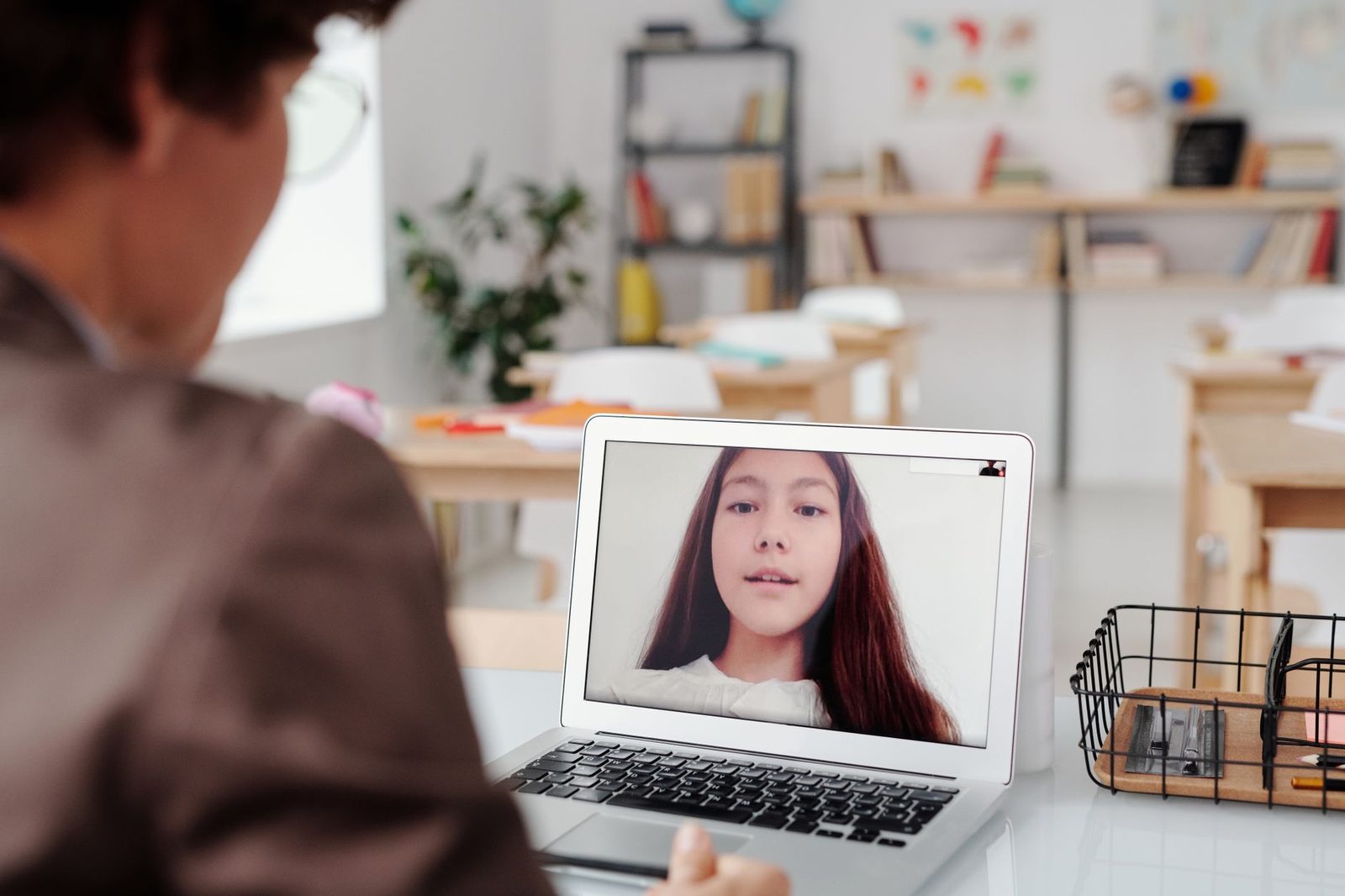
On virtually all recent laptops, the activity LED is wired in series with the sensor's power supply: if the sensor is powered, the light comes on. Apple explicitly documents this behaviour for its Macs, where the camera "cannot be activated without the green indicator light turning on". That's good news, and it's also where the story ends: this wiring depends on the manufacturer, it isn't guaranteed on every cheap USB webcam, and it simply doesn't exist on some camera modules built into entry-level external displays.
In other words: a lit indicator means "it's filming". An unlit indicator means "it's probably not filming". The gap between probably and certainly is exactly what justifies a mechanical cover.
What stays authorised when you think you've closed everything
The realistic scenario in random video chat isn't the lurking spy: it's the forgotten permission. Modern browsers work on persistent, per-site permissions. When you click "Allow" on a chatroulette platform, you often grant that access for all your subsequent visits, with no further questions. As long as the tab exists — even in the background, even while you're reading another page on the same domain — the stream can be reactivated without any click from you.
Add to that three perfectly ordinary situations:
- The pinned tab you never close, which restarts every time you open the browser.
- Session restore after a crash, which relaunches all the authorised tabs at once.
- The resident video-conferencing software (your work one, for instance) that keeps hold of the device and displays a preview the moment it opens.
Data protection authorities regularly point out that controlling access to peripherals — camera, microphone, location — requires a periodic review of permissions, not a single setting made once and for all. It's hardly glamorous, but it's the heart of the matter.
The real risk on chatroulette: capture, not intrusion
The threat also needs to be put back in the right order of probability. In the overwhelming majority of cases, the problem isn't someone taking remote control of your camera. It's that the person on the other side is recording their screen, quite simply, while you are willingly sitting in front of the lens. We covered that side of things in our article on spotting scams and sextortion: a webcam cover changes nothing when you're the one sliding the shutter open.
The cover protects against something else, and that's already a lot: the moments when you don't want to be filmed — before the session, between two conversations, after closing the tab, while you're working, while you're asleep next to the machine.
2. The four families of covers, and their flaws
The adhesive sliding shutter
This is the dominant format: a 1 to 3 mm thick plate stuck around the lens, with a slider that moves across. You'll find them in multi-packs for a few euros. Advantages: usable in a second, no part to lose, findable by touch in the dark.
The two pitfalls, however, are real:
- Thickness. Beyond 2 mm, a thin ultraportable no longer closes perfectly and the screen can press against the keyboard. Some manufacturers, Apple foremost among them, explicitly advise against sticking anything on the camera area of their laptops for this very reason.
- The adhesive. Poor-quality glue migrates with heat and leaves a film on the display or in front of the lens — a film that does show up on video, exactly like a dusty lens.
If your machine is thick (a classic 15-inch laptop, an external display, a desktop monitor), an ultra-thin sliding webcam cover remains the most pragmatic solution. Measure the available space before choosing: models advertised at 0.6–0.8 mm do exist.
The removable clip
A U-shaped clip that sits on the top edge of the screen, no glue required. It's the clean option for very thin laptops and for anyone who refuses adhesive. It has one simple drawback: you put it on, you take it off, you lose it. It fares better on a desktop monitor than in a bag.
The reusable opaque sticker
A small disc of static vinyl or silicone that can be peeled off and reapplied dozens of times. No awkward thickness, no glue residue. In exchange, you have to store it somewhere between uses, and you usually end up sticking it on the palm rest, where it collects dust.
Hardware decoupling: an unpluggable external webcam
This is the most radical method and, truth be told, the most comfortable for anyone who does a lot of video chat. You disable the built-in camera in the device manager and plug in a USB webcam with a built-in cover only for your sessions. No camera plugged in = no possible stream, whatever the browser permissions say. Many recent 1080p models now come with a factory shutter, which saves you stacking up accessories.

What about the microphone?
The blind spot of all these accessories. A webcam cover doesn't cut the sound. And in random video chat, the microphone is at least as indiscreet as the image: it picks up conversations in the room, the television, first names, addresses spoken over the phone.
Two simple answers:
- Use a USB headset with a physical mute switch on the cable, and unplug it outside of sessions. A mechanical cut-off on the inline control is worth more than a software "mute" icon.
- Or disable the audio input at system level between sessions (see the protocol below).
Rule of thumb: the cover protects your background, the mute protects your information. Neither replaces the other.
3. The protocol: before, during, after
Before the session (three minutes, once and for all)
1. Clean up your browser permissions. On Chrome: chrome://settings/content/camera. On Firefox: Settings → Privacy & Security → Permissions → Camera. On Safari: Settings → Websites → Camera. Delete every site you don't recognise, and for the chatroulette platforms you do use, prefer the "Ask" setting rather than "Allow". One extra click per session, and you always know who's watching.
2. Check which camera is selected by default. If you have both an external webcam and a built-in camera, the browser sometimes picks the wrong one — framing the ceiling or, worse, the room behind you.
3. Test your field of view, not just your face. Open the camera preview, then mentally step back: what's in the two metres covered by the lens? A letter on the desk, a parcel label, a bunch of keys, a family photo. We went into detail in setting up a video-call corner at home without giving everything away.
4. Treat opening the cover as a deliberate act, not a reflex. The whole point of a mechanical shutter is precisely that it forces a conscious decision: I'm opening it because I'm about to talk to someone.
During the session
- Keep the cover within thumb's reach. On chatroulette, awkward situations happen in a second: an exhibitionist drops onto your screen, someone walks into the room. Closing the shutter is faster and more reliable than hunting for the interface's "camera" button.
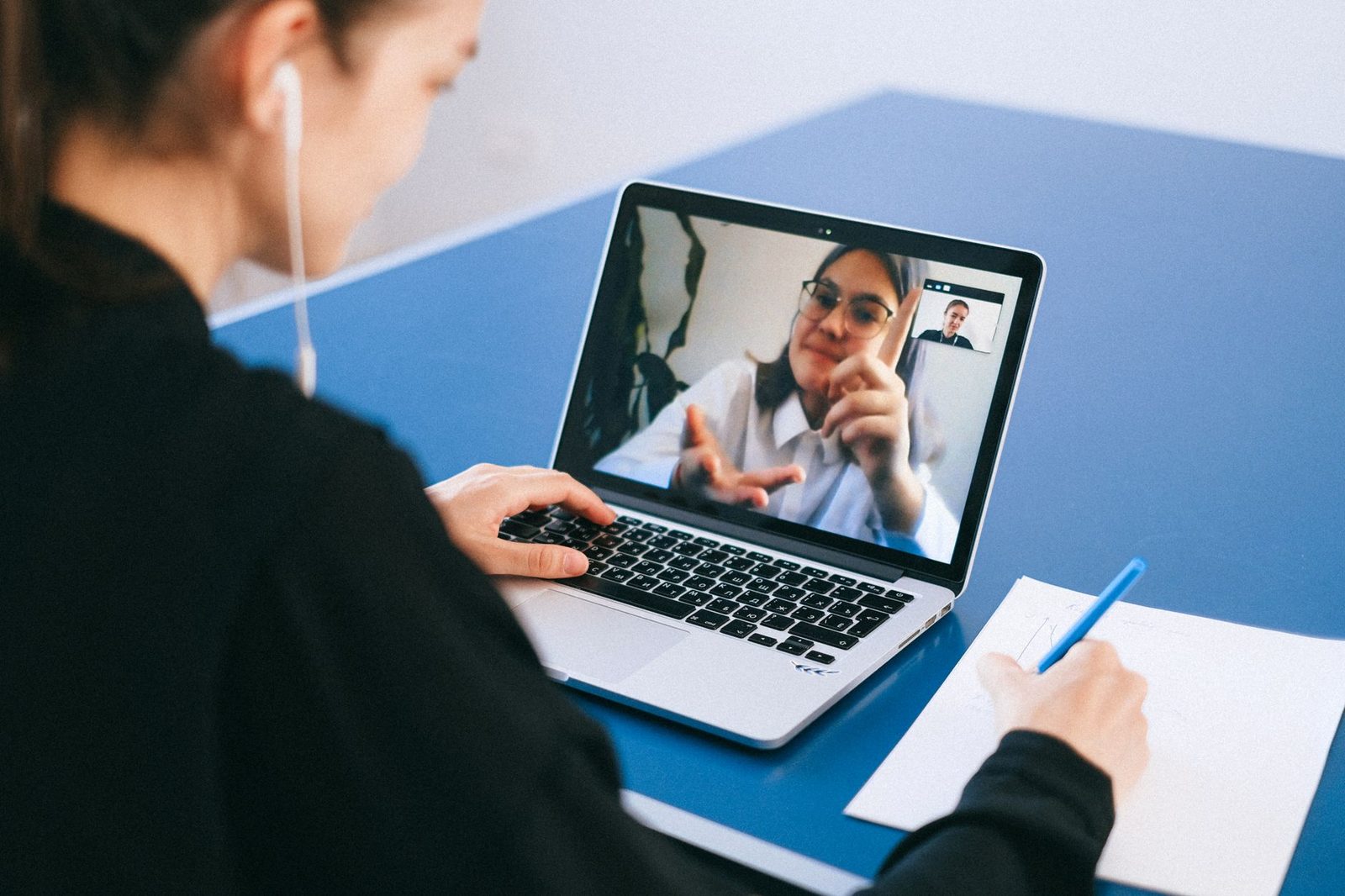
- Don't confuse "next" with "disconnected". Moving on to the next person doesn't cut your stream: you're broadcasting continuously during matching. It's precisely in those micro-intervals that people scratch their nose thinking they're off camera.
- Watch the system indicator. macOS shows an orange or green dot in the menu bar, Windows 11 a camera icon in the notification area, Android and iOS a coloured dot at the top of the screen. These are software indicators, less reliable than a hard-wired LED, but they alert you to apps still holding the device.
After the session (the step most often skipped)
- Close the tab, not just the conversation. A minimised chatroulette page is still an authorised page.
- Close the shutter immediately. In the same movement as closing the tab, so it becomes automatic.
- Unplug the external webcam if you use one. Three seconds, and the problem physically disappears.
- Check the indicator light. Off? Perfect. Still on after closing the browser? Another application is behind it: quit it completely (on macOS, a "closed" app often stays active in the Dock).
- Once a month, go back through the permission list. Sites pile up faster than you'd think.
The next level up: disabling the camera at system level
For those who use chatroulette occasionally and want an inert camera the rest of the time:
| System | Where to disable it | Effect |
|---|---|---|
| Windows 11 | Settings → Privacy → Camera → "Camera access" | Blocks all applications, to be re-enabled before each session |
| Windows (advanced) | Device Manager → Imaging devices → Disable | The camera becomes invisible to the system |
| macOS | Settings → Privacy & Security → Camera | Per-application permission, no global switch |
| Android / iOS | Per-application permissions | Revoke camera access for browsers you don't use |
| Router / BIOS | Some business laptops: disable the camera in the firmware | The most robust cut-off, requires a reboot |
It's a little inconvenient, and that's the point: here, the inconvenience is a feature, not a bug.
4. What the cover will never do for you
To finish, three illusions worth dismantling, because a reassuring accessory can create a false sense of security:
- It doesn't protect you from what you show willingly. Screen capture by the person you're talking to is the number one risk in random video chat, and no shutter prevents it. The only safeguard is what you decide not to do in front of the lens.
- It doesn't protect your metadata. IP address, device type, connection times: that's another project altogether, the one about the rights you actually have under the GDPR.
- It doesn't replace updates. Vulnerabilities in peripheral access are fixed by software patches. In its computer-hygiene recommendations, ANSSI places regular system and browser updates ahead of any physical accessory. A cover on a machine that's never updated is an armoured door in a cardboard wall.
To go further on the general logic — threat models, password hygiene, separating your uses — a good accessible book on cybersecurity for the general reader often does more for peace of mind than any gadget: understanding why you make a gesture is enough to stop forgetting it.
In summary
| Situation | Minimum action |
|---|---|
| I'm not in a session | Shutter closed, tab closed |
| I'm starting a chatroulette | Permission set to "Ask", field of view checked |
| Between two people | I know I'm still being filmed |
| I'm done | Tab closed, shutter closed, indicator checked |
| Once a month | Review of browser permissions |
A webcam cover won't make you anonymous and won't replace any of the precautions we've been discussing for months on Lovycam. But it's the only device on the list that cannot be bypassed by software, and the only one that turns a computing question into a question of gesture. In a world where you jump from stranger to stranger at the press of a key, having a physical switch between your living room and the rest of the world isn't paranoia. It's just a door with a handle.