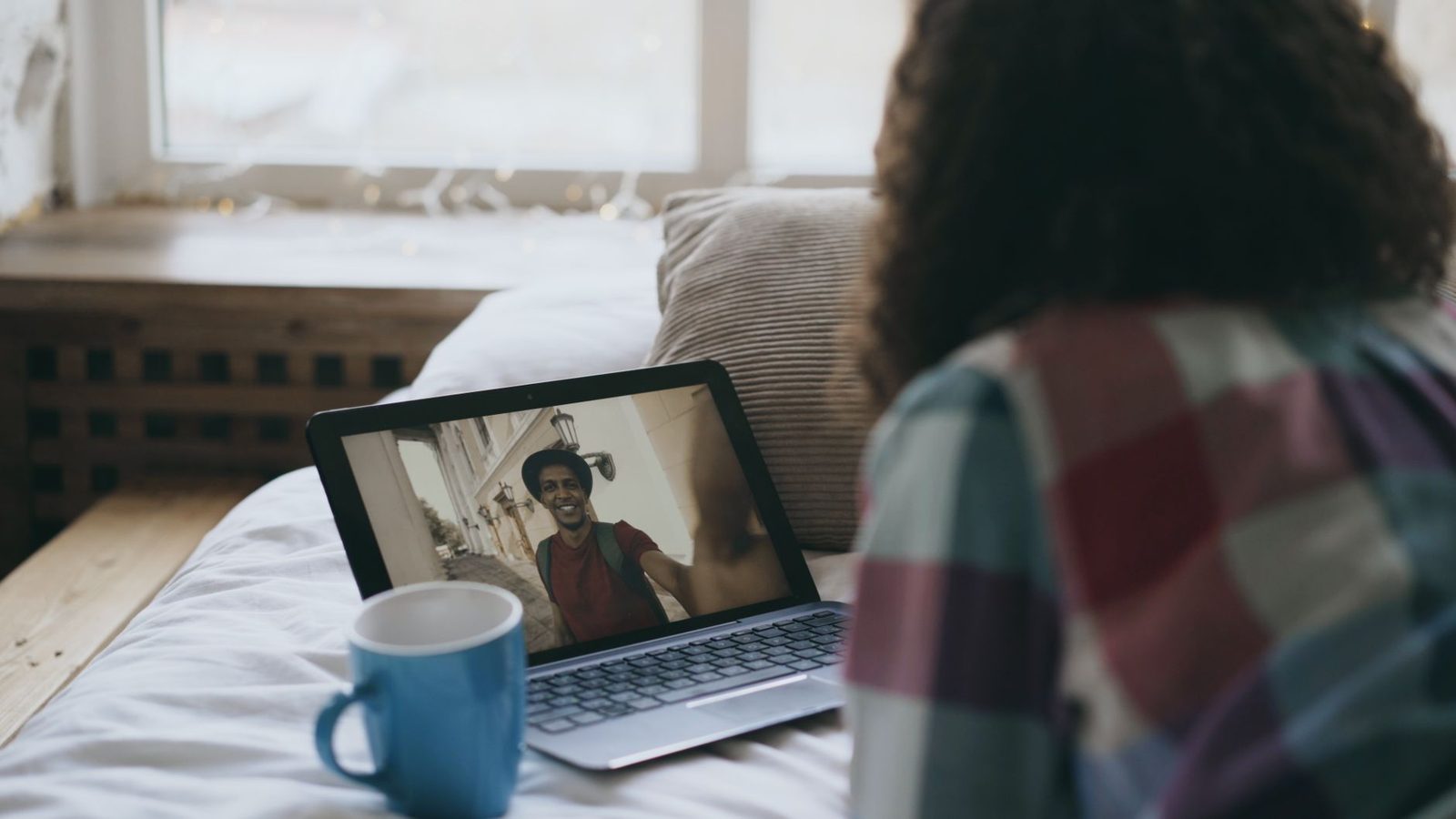
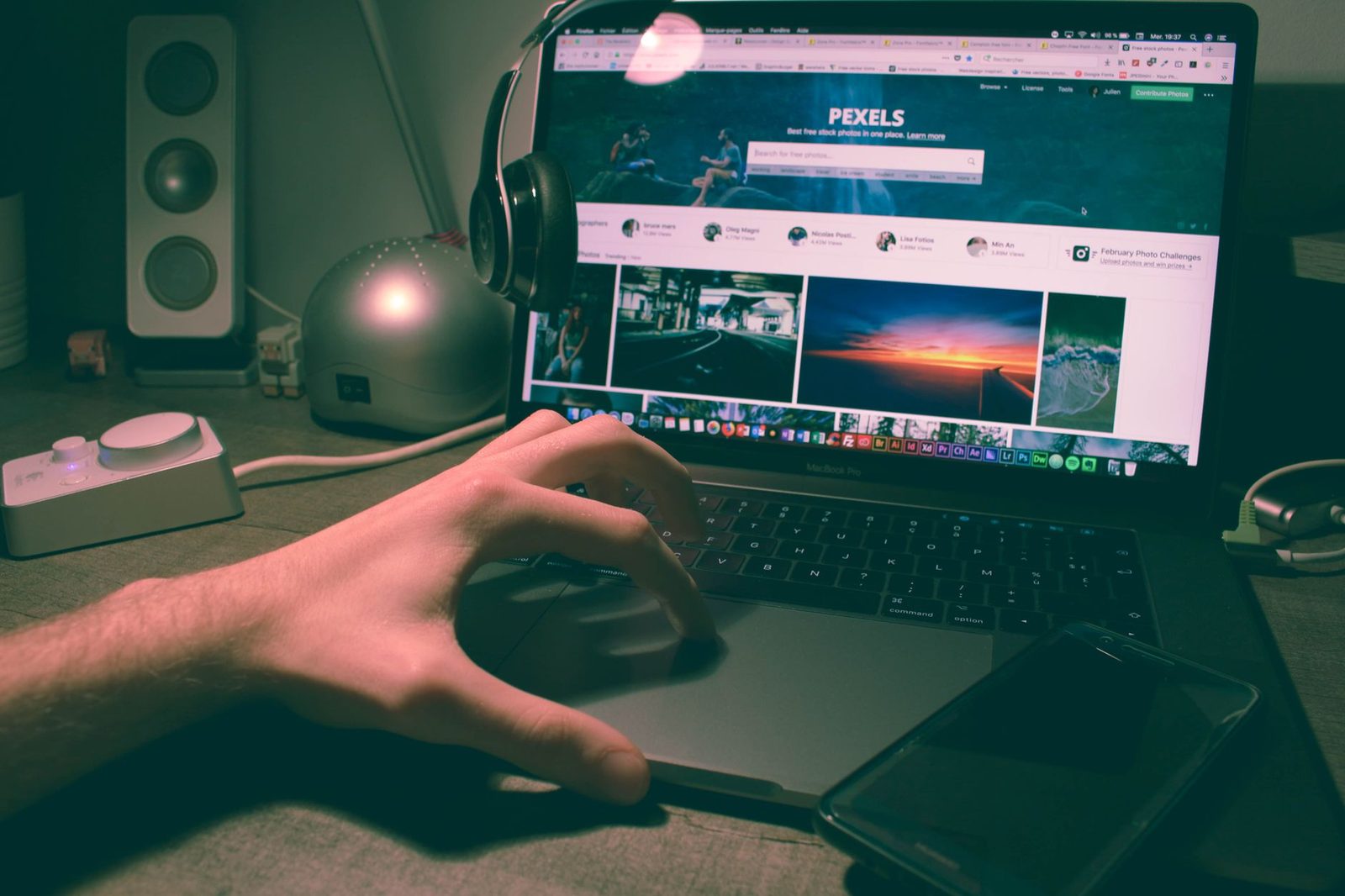
We set up the backdrop, fuss over the lighting, rehearse the opening line — and leave the webcam exactly where the manufacturer put it, with factory settings, a browser permission granted two years ago and the lens permanently uncovered. Yet it's the one object that decides everything: the framing, the angle of your gaze, the sharpness, and the list of sites allowed to switch it on.
We've already covered what your backdrop says about you, picture and sound in video dating and setting up a video-call corner at home. This article is about the hardware itself: the camera, its position, its software settings and its permissions. It's the physical building block, the one everyone skips because it seems obvious — and it isn't.
Three parts: geometry (where your camera is and what it distorts), settings (what you can fix for free in five minutes), and control (who is allowed to switch on your lens, and how to check).

1. Geometry: your camera lies about your face
The low angle, that structural flaw of laptops
On a laptop sitting on a table, the lens ends up at roughly chest height and points upwards. The result: you're filming your chin, your nostrils and your ceiling. This isn't a matter of aesthetics, it's a matter of social reading. A face seen from below is perceived as more dominant, more distant, sometimes more aggressive; seen slightly from above or at eye level, it comes across as more open and warmer.
This link between camera angle and personality judgement has been documented for a long time in the psychology of perception. The work of Dariusz Doliński and, more recently, research carried out at the University of North Carolina on portraits viewed from above or below converge on one simple point: the angle alters perceived dominance and likeability before any verbal content. On a chatroulette, where the decision to stay or skip is made in one to two seconds, that bias is anything but trivial.
The fix is mechanical: the lens should be at eye level, or very slightly above. Two or three thick books under the laptop will do. If you'd rather have something stable and adjustable, an adjustable laptop riser stand does the job for the price of a takeaway meal — and incidentally spares your neck, something the INRS has been recommending for screen work for years.
Distance: neither CCTV wide shot nor dentist's close-up
The second classic flaw is distance. Too close, and the wide-angle lens of built-in webcams distorts your face: the nose swells, the ears recede, the forehead bulges. Too far, and you become an anonymous torso lost in a room.
A useful benchmark:
- Top of frame: the crown of your head a few centimetres from the upper edge.
- Bottom of frame: mid-torso, never just below the chin.
- Distance: roughly 60 to 80 cm between the lens and your face.
At that distance, wide-angle distortion becomes negligible and the stranger can see your shoulders move — a signal of presence that a tight close-up removes entirely.
Gaze: camera or screen, you have to choose
Nobody looks at the lens, everybody looks at the other person's thumbnail. The consequence: on a chatroulette, almost all participants appear to be looking off to one side. There's no perfect solution, but there is a rule of compromise: put the conversation window directly below the camera, not on a second monitor or in the opposite corner. The angular gap between your gaze and the lens then drops below the threshold at which the other person perceives you as looking away.
If your webcam is external, it goes above the screen, centred, never off to the side. A webcam offset to the left of the monitor manufactures a permanent profile shot, and a permanent profile shot looks like disinterest.
2. Settings: five minutes to move up a level
Resolution, smoothness, and the "4K" myth
Chatroulettes compress the video stream heavily: the bandwidth actually transmitted rarely exceeds a few hundred kilobits per second in practice, and most platforms cap the display well below Full HD. In other words, a 4K webcam will not improve your image on a chatroulette. What does improve it, in order:
- Sensor sensitivity in low light — this is where built-in webcams collapse.
- Smoothness: a stable 30 frames per second beats a choppy 60.
- Connection stability: video that pixelates in waves is more damaging than a modest resolution.
If you've reached the replacement stage, an external 1080p webcam with a decent sensor delivers a visible leap that ten software tweaks will never match on an entry-level laptop sensor. But start with the settings: they're free.
What the configuration panels hide
Most systems expose, either directly or via the manufacturer's utility, a set of parameters nobody ever opens:
| Setting | Typical factory value | What to aim for |
|---|---|---|
| Auto exposure | On | Turn off if your image "pumps" when you move |
| White balance | Automatic | Lock manually if your skin turns blue or orange |
| Sharpness | Pushed to maximum | Lower it: over-sharpening creates artificial edges |
| Low-light correction | On | Useful, but it often halves the frame rate |
| Digital zoom | 0 | Leave it at 0: it genuinely degrades the image |
The single most rewarding adjustment is almost always exposure. On automatic, the camera re-adjusts brightness the moment you move your head, producing those luminous "breaths" that make any video call look amateurish. Lock it once your lighting is set, and the image immediately becomes more stable.
Sound, the neglected cousin of camera gear
We forget about it because it isn't visible, but the microphone built into a webcam or laptop picks up the entire room: fan noise, keyboard, echo off bare walls. On a chatroulette, dirty audio gets you skipped just as fast as a dark picture. A simple USB headset or even wired earphones with a microphone eliminate the echo and bring your voice closer — for a trivial cost compared with the perceived gain.
3. Control: who can switch on your camera
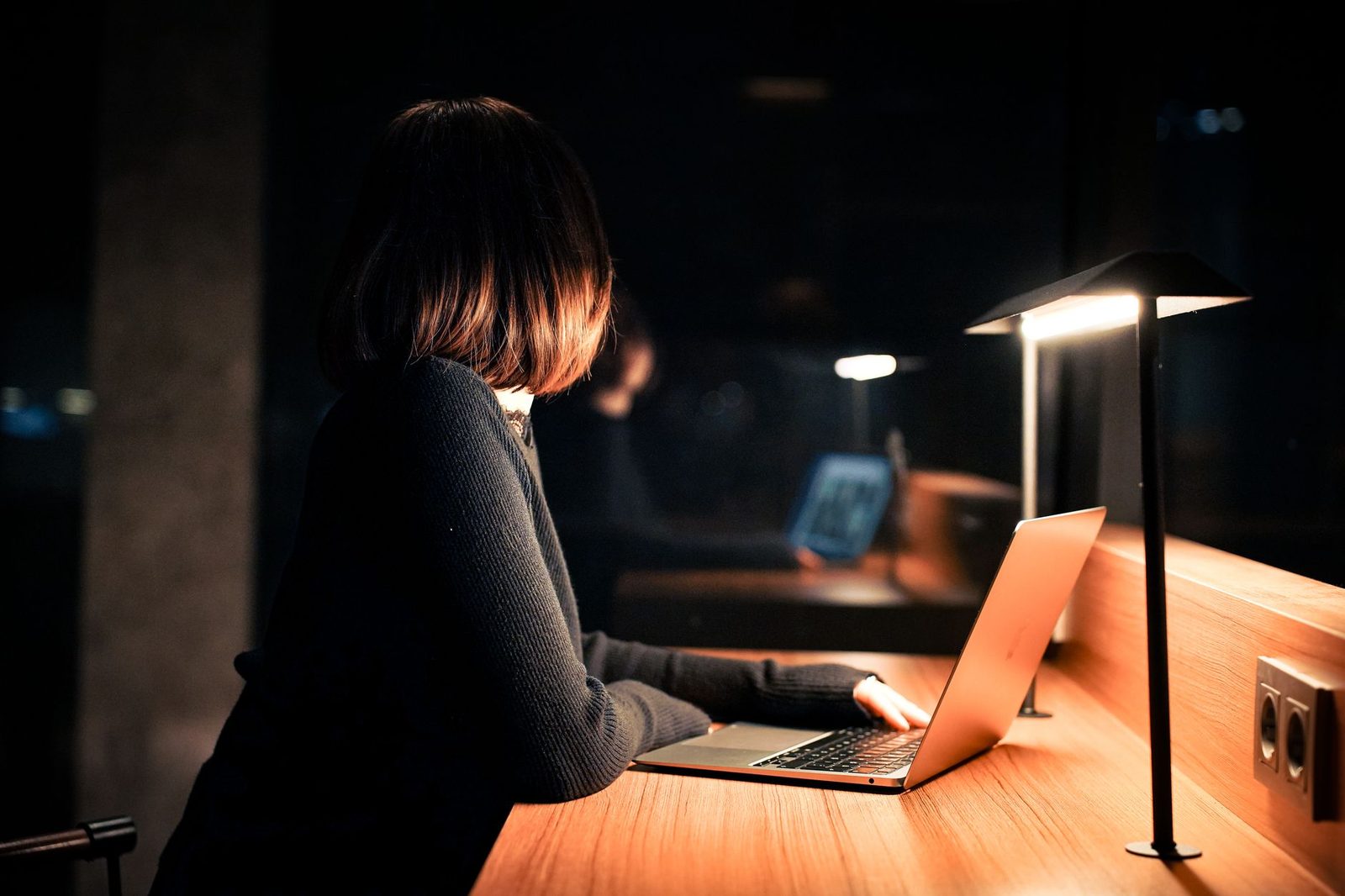
The browser permission, granted once and for all
Almost all chatroulettes run in the browser, via the WebRTC API and getUserMedia access. When you click "Allow", most browsers remember the decision for that site, indefinitely. So you may well have, buried in your settings, a dozen sites authorised to open your camera the moment you return — including platforms you no longer use.
This clean-up takes two minutes:
- Chrome / Edge:
Settings → Privacy and security → Site settings → Camera. The list of allowed and blocked sites appears there. - Firefox:
Settings → Privacy & Security → Permissions → Camera → Settings. Also tick "Block new requests asking to access your camera" if you'd rather not be asked again. - Safari:
Settings → Websites → Camera, with a per-site setting.
The healthy habit: grant the permission only for the current session when the browser offers that option, and go back through this list every six months.
The indicator light, and why it isn't quite enough
On the vast majority of recent computers, the webcam LED is wired to the sensor's power supply: if the camera is filming, the light is on, and no software can prevent it. That's a genuine safeguard, and Apple documents it explicitly for its machines.
But this safeguard has two blind spots. First, it doesn't protect you from situations where you authorised the camera without thinking — a tab left open in the background, a platform that restarts the stream. Second, on some cheap external webcams, that wiring isn't guaranteed.
Hence the dumbest and most effective accessory on this list: a sliding webcam cover costing a few euros, stuck to the edge of the screen. It turns a question of software trust into physical certainty. The CNIL regularly points out, in its practical guidance on connected devices and webcams, that physically covering the lens remains the most reliable defence against unwanted capture. It's also, incidentally, the only one that works when the device is switched off but in sleep mode.
Simple rule: the camera is closed by default. You open it for a session, you close it when you're done. The reverse — open by default, closed when you remember — is a bet you eventually lose.
Screenshots: no setting protects you
It needs saying plainly, because many guides skirt around it: no webcam setting, no cover, no platform will protect you from a screenshot taken by the person you're talking to. Everything that appears in your frame is, in practice, recordable. That doesn't mean you should avoid chatroulettes; it means the right point to make your decisions is before you switch the camera on, not during.
The practical consequences:
- Don't show anything you wouldn't show a colleague.
- Check the field of view before connecting: mail lying on the desk, a parcel with an address label, family photos, a street sign visible through the window.
- Beware of mirrors and glazed surfaces in frame: they reflect your screen, and therefore sometimes your open tabs.
- If you use background blur, be aware that it breaks down at the slightest quick movement and lets a glimpse of the room through for a fraction of a second.
This is exactly the kind of detail that fuels the sextortion attempts we've described before: whatever is captured, framed and geolocatable becomes a lever for pressure. The best defence remains neutral framing.
4. Mobile: a different camera, different pitfalls
On a smartphone, the problems change in nature.
- The front camera is wide-angle, so it distorts heavily at arm's length. Hold the phone at 50 cm, never at 25.
- Your arm shakes. After three minutes the image is constantly moving, which tires the other person out. A small tabletop smartphone tripod solves this for good and finally lets you put your hands down.
- Vertical framing cuts out the backdrop but brings your face abruptly closer: move back accordingly.
- Permissions are harder to audit: on both Android and iOS, open the "Privacy → Camera" section and go through the list of authorised apps. Both systems now display a coloured indicator at the top of the screen whenever an app is using the camera — a green or orange dot appearing for no reason deserves an immediate check.
5. The thirty-second checklist before you connect
Do this in order, once and for all, then as a reflex:
- Clean lens. A wipe with a microfibre cloth: a greasy sensor means a permanent whitish haze for the whole session.
- Eye level. Raise the laptop if needed.
- Distance of 60 to 80 cm, torso visible, crown of the head near the top edge.
- Exposure locked, sharpness dialled down a notch.
- Conversation window placed directly below the camera.
- Field of view checked: no mail, no mirror, no identifiable window.
- Sound tested solo before the first match.
- Cover closed at the end of the session.
None of this is expensive, and the essentials cost nothing. The webcam is the only intermediary between you and the stranger; treating it as a device you adjust, rather than a black hole above the screen, changes the quality of your encounters as much as any opening line.
In summary
| Common problem | Fix |
|---|---|
| Face shot from below | Raise the computer to eye level |
| Distorted features | Move back to 60–80 cm from the lens |
| Image that "pumps" | Lock exposure manually |
| Gaze always off to the side | Chat window placed below the camera |
| Echoey sound | Headset or earphones with a mic |
| Camera authorised everywhere | Audit browser permissions every six months |
| Permanent doubt | Physical cover closed after every session |
Once the hardware is sorted, the next variable to work on is no longer technical: it's what you do with the first minute. We've devoted a whole article to it.